My first program
The first real program I wrote was called Strongchest. I was 15, it was the 2020 lockdown, and I had a lot of free time.
What it is
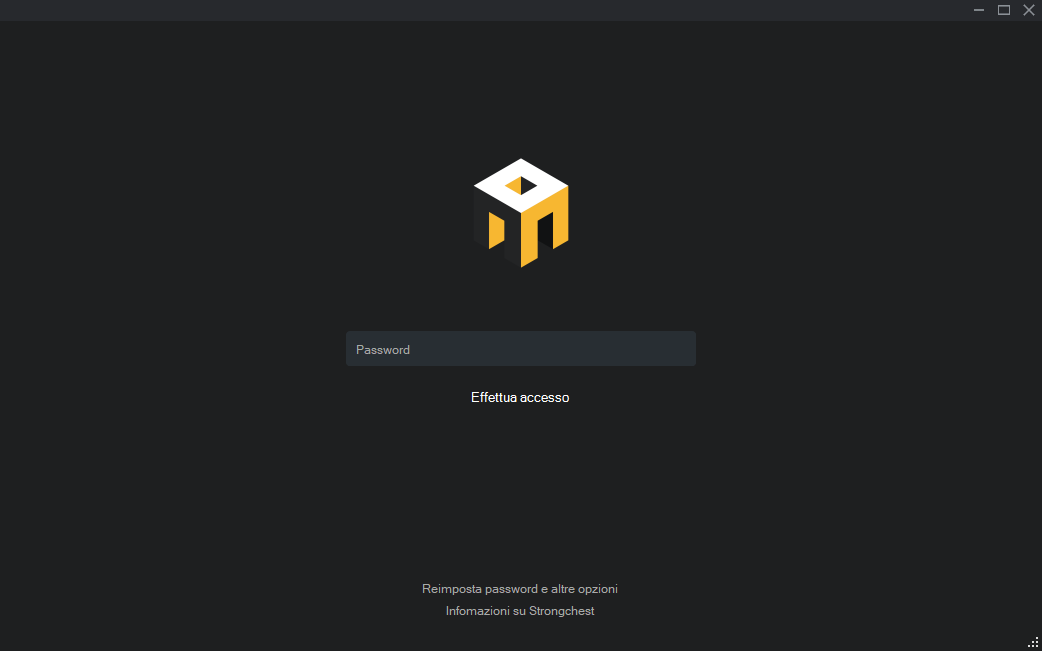
Strongchest is a Windows desktop application for creating and managing encrypted folders. Written entirely in VB.NET (don’t judge me…).
I honestly don’t remember why I started this project, I just wanted to build something “serious”. I was watching a ton of VB.NET tutorials without really understanding anything about programming. Types, arrays, functions, scope: I had no idea what any of those were.
The first version I wrote was absolutely full of GOTO statements. After about the 50th label, I figured that approach might not be the best.
Even though VB.NET wasn’t exactly cutting-edge, it had real advantages:
- It was incredibly easy. The Visual Studio autocomplete (not VS Code, the real one) felt like magic.
- It had a drag-and-drop designer for building UIs.
- It provided tons of built-in tools: My.Settings (for saving user data), My.Resources (for assets), My.Computer (APIs for anything).
I think VB.NET holds a special place for many people because it let us learn programming with incredible simplicity.
How it works
The flow is simple:
- The user is prompted to create a vault by entering a password.
- The folder is created in the user’s
AppDatadirectory. - An interface opens where the user can drag and drop files and folders.
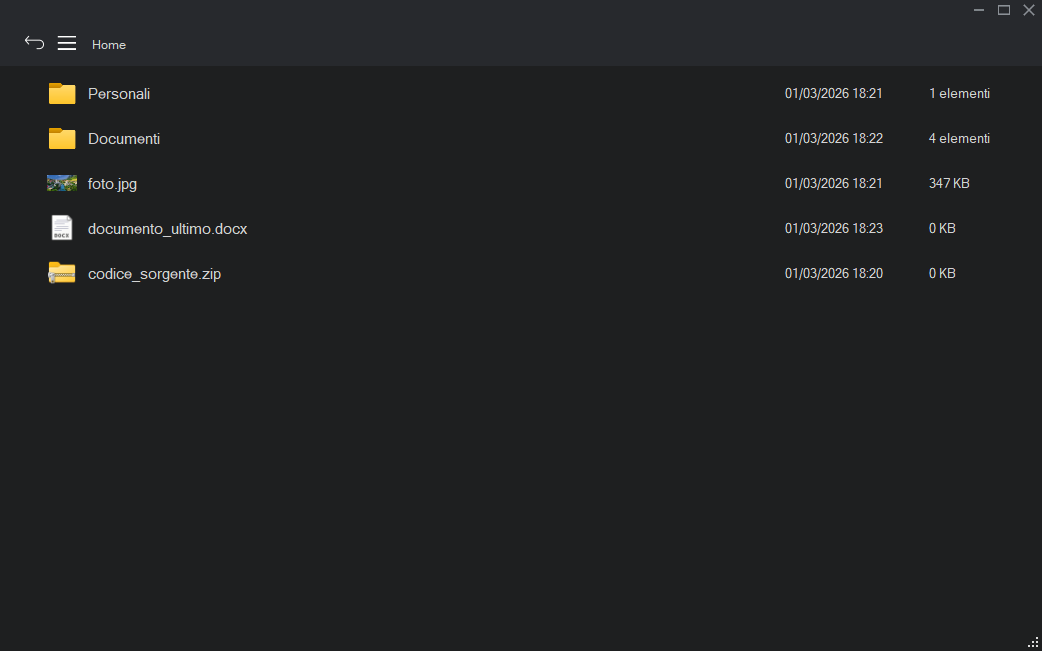
- Everything is encrypted when files are added, and double-clicking a file decrypts it and opens it with the default app.
Features
- Storage, management and opening of files and folders.
- AES-256 encryption (implemented by a 15-year-old me… but it worked).
- Full operation logging (add, remove, open) with timestamps.
- Drag-and-drop interface for adding files and folders.
- Password hashing.
- Automatic updates.
Encryption
I didn’t really know what “encryption” meant, but I was smart enough not to try writing my own algorithm. The AES implementation I used came from StackOverflow.
File explorer
The interface shows the files in the encrypted folder. Double-clicking a file decrypts it to a temporary folder and opens it with the default app. For images, the program decrypted everything on the fly when opening a folder (not the most secure solution), which is why opening a folder with many images took a while. On close, temporary files are deleted.
Export, import and password change
The app let you export and import encrypted vaults as .schest files: simply zip files containing the encrypted files and a small file with the password hash. Password changes worked by decrypting everything with the old password and re-encrypting with the new one.
Installer and updates
One thing I was quite proud of was the automatic update system. On startup, the app checked a CDN (a .txt file ☠️) to see if the version differed from the installed one, and if so, downloaded a new installer and ran it. Nothing crazy, but it looked pretty cool.
Storage management
The app let you set a storage limit, checked on every file addition. If you exceeded it, you couldn’t add new files, and a notification warned you, showing used and available space.
Company branding
The app let you customize the icon and displayed name, and disable updates. I don’t really know why I added this: it was inspired by the school’s Chrome that showed it was “managed by your organization” on launch. Maybe I thought some company might want an app like this, who knows.
What I learned
- Cryptography is complicated…
- Writing software for yourself is more motivating than any school project.
- Comments matter.
- It’s important to design software before writing it (but sometimes winging it is great).
- You can build a decent app even if you don’t know what a function or a memory space is.
Current state
It works pretty well if you use it the “intended” way, but unfortunately many exceptions are handled poorly. The app occasionally restarts itself on purpose after certain operations (vault creation, password change) to reload its configuration: this causes issues with Windows SmartScreen, which blocks the restart. Every time you have to click “More info” and then “Run anyway”. It didn’t used to do this: SmartScreen probably got stricter.
The code is still on GitHub.